
Manage Bot Policies
Important: Bot Defense Self-Service Policy Management is an Early Access feature.
The Distributed Cloud Console lets you view and manage your currently deployed polices. For example, you can protect additional endpoints, change mitigation actions or update your routing information and then deploy new policy versions. You can also view previous policy versions. If you need help managing policies, contact your F5 Operations team.
Protect Additional Endpoints
After you initially deploy your Bot Endpoint Policy, as your IT environment evolves, it might be necessary to protect additional endpoints. To protect an additional endpoint, you must create a new version of the Bot Endpoint Policy.
- From the Bot Defense navigation menu, select Manage > Bot Policies and then select Bot Endpoint Policy.
- From the list of saved Bot Endpoint Policies, in the Actions column, select the Action menu (…) next to the most recent policy version.
- Select Manage Configuration and then select Edit Configuration.
- To add a new protected endpoint, in the Protected Endpoints section, select Add Item and then provide information about the endpoint. For information about specific configuration fields, see Configure the Bot Endpoint Policy.
- When you finish adding endpoints, select Apply and then select Save Bot Endpoint Policy.
- Choose one of the following options:
- Save Final: The policy version is saved and added to the list of policy versions that you can deploy in your Bot infrastructure.
- Save as Draft: You or another administrator can review and finalize this policy version later.
- To deploy your new policy version, see Deploy Policy Updates.
View Policy Version History and Details
You can view history and policy details for previous versions of each Bot Policy type.
-
From the Bot Defense navigation menu, select Manage > Bot Policies and then select either Bot Endpoint Policy, Bot Allowlist Policy or Bot Network Policy.
-
From the list of saved policy versions, in the Actions column, select the Action menu (…) next to the policy you want to view and then select Endpoint Policy Versions, Allowlist Policy Versions or Network Policy Versions, depending on the type of policy you want to view.
-
In the Policy Versions box, in the Actions column, select the Action menu (…) next to the version you want to view and select Manage Configuration to view additional policy details.
-
To exit, select the X on the Policy Versions panel to close the panel.
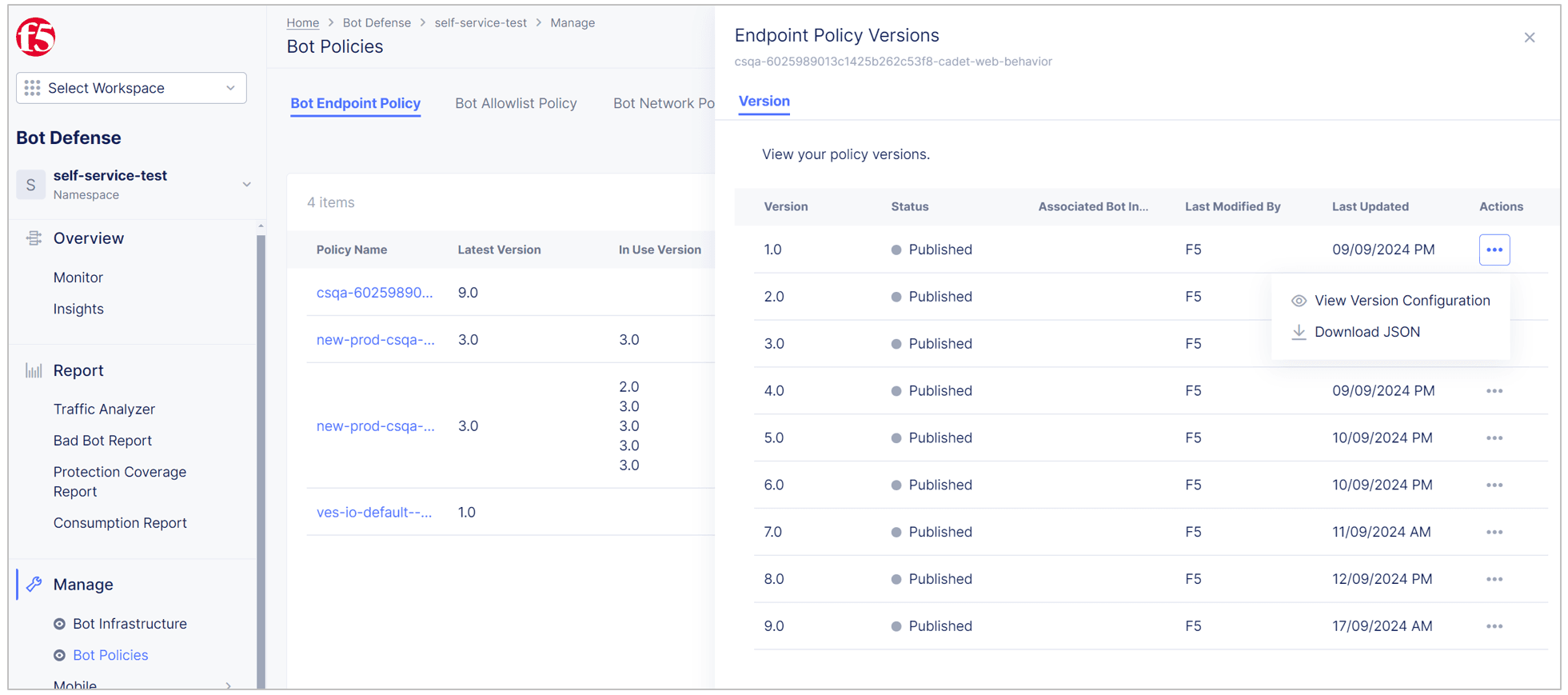
Figure: Policy Versions
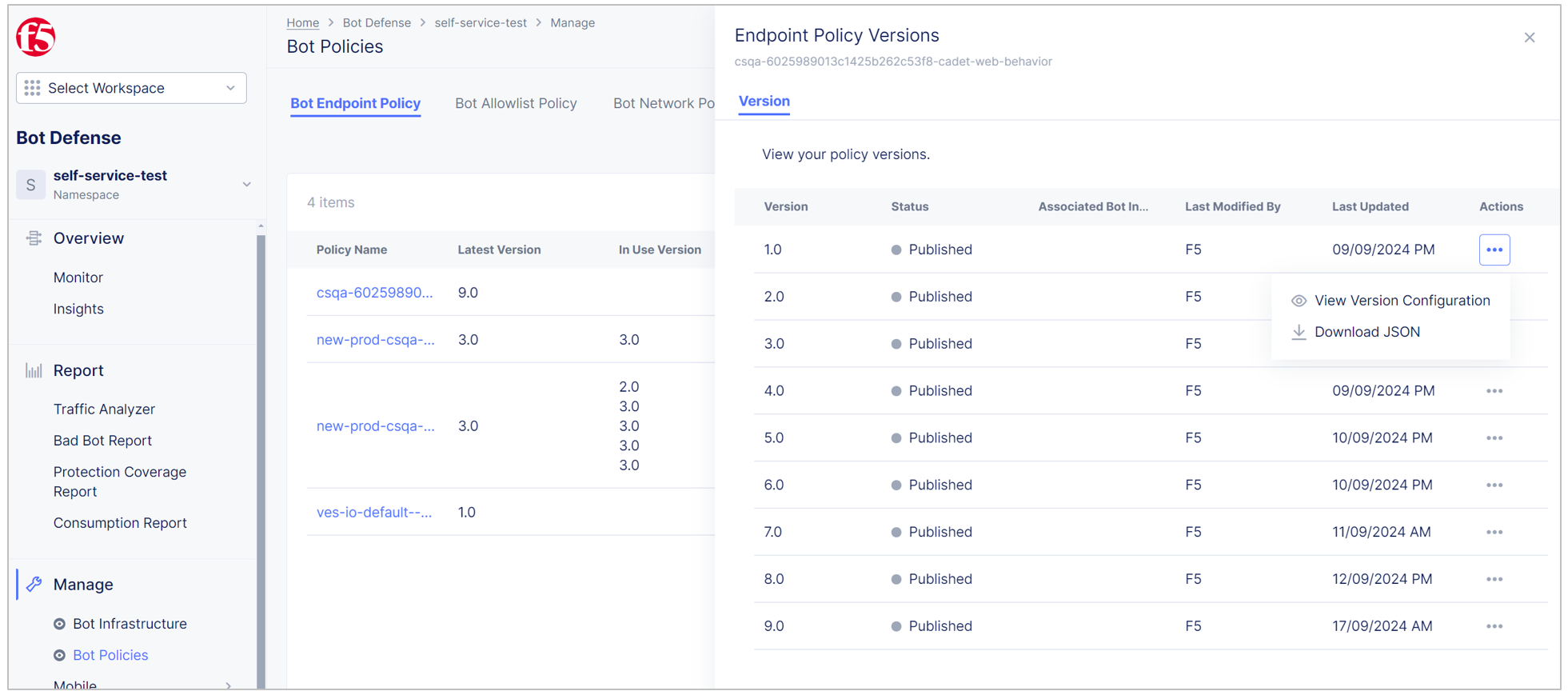
Download a Policy JSON File
For each of your individual policies, you can download a JSON file that contains the details of the policy.
To download the JSON file:
- From the Bot Defense navigation menu, select Manage > Bot Policies and then select either Bot Endpoint Policy, Bot Allowlist Policy or Bot Network Policy.
- From the list of saved policies, in the Actions column, select the Action menu (…) and then select Endpoint Policy Versions, Allowlist Policy Versions or Network Policy Versions, depending on the type of policy you want to view.
- From the list of saved policy versions, in the Actions column, select the Action menu (…) and then select Download JSON. The JSON file downloads to the download location configured in your browser.
- When the download completes, select the X on the Policy Versions panel to close the panel.
Change Mitigation Actions
After you initially deploy your Bot Endpoint Policy, it might be necessary to change the mitigation actions you configured for your endpoints. For example, if you initially deployed your Bot Endpoint Policy with the mitigation action set to Continue so traffic continues to the origin, when you decide to begin mitigating traffic, you might change the mitigation action to Redirect or Block so that automated traffic no longer reaches the origin.
-
From the Bot Defense navigation menu, select Manage > Bot Policies and then select Bot Endpoint Policy.
-
From the list of saved Bot Endpoint Policies, in the Actions column, select the Action menu (…) next to the most recent policy version.
-
Select Manage Configuration and then select Edit Configuration.
-
In the Actions column, next to the protected endpoint you want to edit, select Edit.

Figure: Edit a Protected Endpoint
-
Scroll to Mitigation action and select a new mitigation action.
-
Select Apply and then select Save Bot Endpoint Policy.
-
Choose one of the following options:
- Save Final: The policy version is saved and added to the list of policy versions that you can deploy in your Bot infrastructure.
- Save as Draft: You or another administrator can review and finalize this policy version later.
-
To deploy a new policy version, see Deploy Policy Updates.

Revert to a Previous Policy Version
It might be necessary to revert to a previous policy version if a recent change has created an unintended consequence or if a change in your IT environment makes a previous policy more desirable.
When you revert to a previous policy version, the current version remains available in the system if you decide that it is necessary to return to that latest policy version.
Policy changes take effect immediately, so before you revert to a previous policy version, make sure you know what the results of the change are.
- From the Bot Defense navigation menu, select Manage > Bot Infrastructure.
- In the Actions column, next to the Bot infrastructure where you want to revert a previous policy version, select the Action menu (...) and then select Deploy Infrastructure.
- For the policy you want to update, select the Policy Name and Deployment Version to which you want to revert.
- Select the checkbox to acknowledge that you understand that Bot Defense deploys policy changes immediately.
- Select Deploy. Then select Show Bot Infrastructure Status to view the deployment status for the Bot infrastructure you updated.